
RPCS3 setup on Windows begins with the emulator, the official PS3 system software and a properly prepared copy of your game. Once those are in place, you can configure your controls and check the graphics settings before playing.
RPCS3 is a PlayStation 3 emulator that runs the console’s software on a computer. This guide covers the Windows x64 version for Intel and AMD PCs, from downloading the program to troubleshooting your first game launch.
Check your game and PC first
Before downloading anything, look up your game in the official compatibility list. Match the game ID to your edition rather than relying on the title alone. Regional and digital releases can have different IDs, and the associated wiki page lists recommended settings and known issues.
A Playable rating means the game can be completed with playable performance and without game-breaking problems. It does not guarantee the same frame rate on every PC. Ingame means it reaches gameplay but still has problems with performance, serious glitches or completion.
Next, check the project’s current system requirements. Being able to launch the emulator is different from running a demanding game well. Pay particular attention to:
- CPU: check the exact model. Names such as “Core i5” or “Ryzen 5” cover many generations of processors.
- Graphics card: check Vulkan support and install an up-to-date graphics driver.
- Memory: 16 GB is a more practical starting point than relying on the 8 GB minimum.
- Storage: allow space for firmware, installed game data and emulator caches as well as the game copy itself.
1. Download and extract RPCS3
Open the official download page and choose the Windows x64 build for an Intel or AMD PC.
- Download the emulator archive.
- Extract it with a tool that supports
.7zfiles. - Put the extracted folder somewhere you intend to keep it, such as
C:\Emulation\RPCS3. - Run
rpcs3.exefrom that folder.
Extract the whole archive before launching the program. RPCS3 uses the accompanying files, so copying out the executable alone is not enough. Read the initial notices when the emulator opens.
The Windows build also requires Microsoft Visual C++ runtime libraries. If the required package is missing, install the appropriate x64 Redistributable from Microsoft’s download page. If Windows reports a missing runtime DLL, install or repair that package rather than downloading individual DLL files from other websites.
2. Install the PS3 firmware
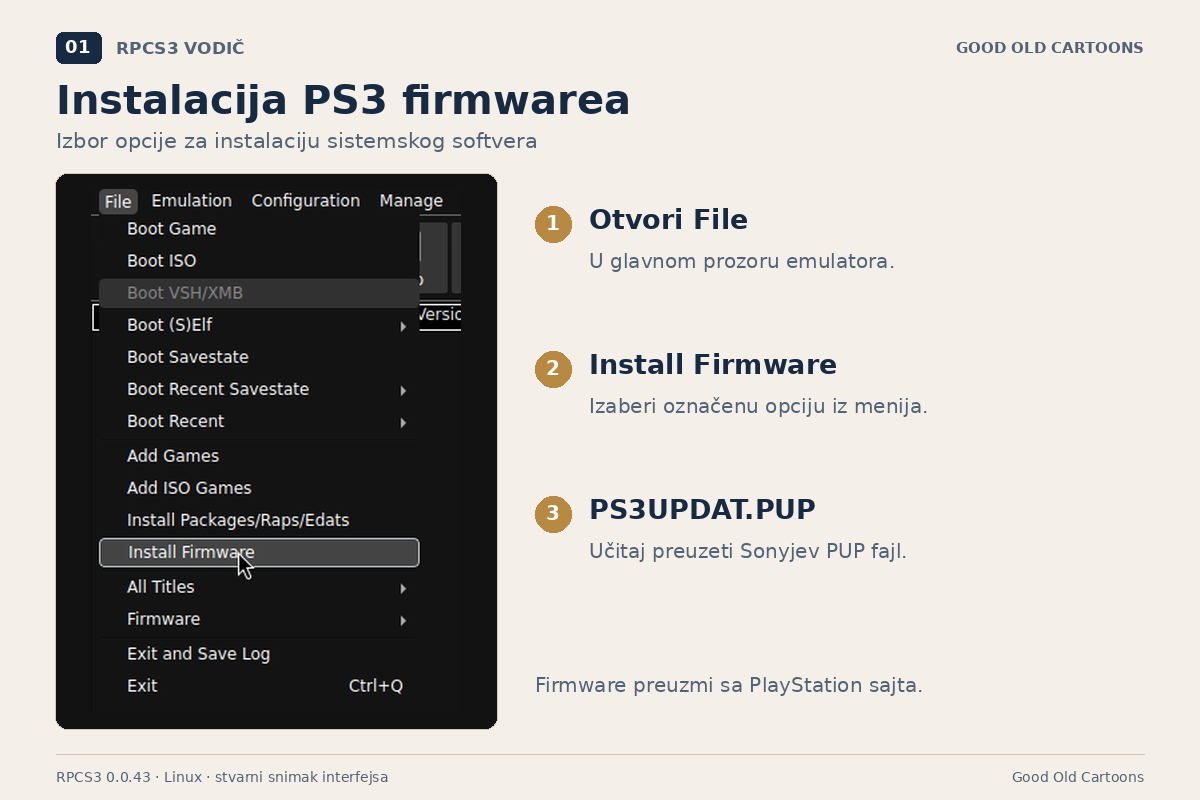
RPCS3 needs the PlayStation 3 system software, usually called firmware. It is downloaded separately from the emulator, directly from the official PlayStation support page.
- Find the section for downloading the update using a computer.
- Download the
PS3UPDAT.PUPfile. - In RPCS3, select File → Install Firmware.
- Choose the downloaded PUP file and wait for installation to finish.
Sony’s instructions mention a USB drive and folders named PS3 and UPDATE because they describe updating a physical console. For RPCS3, select the downloaded PUP file directly through the emulator’s firmware installer.
3. Set up your controller
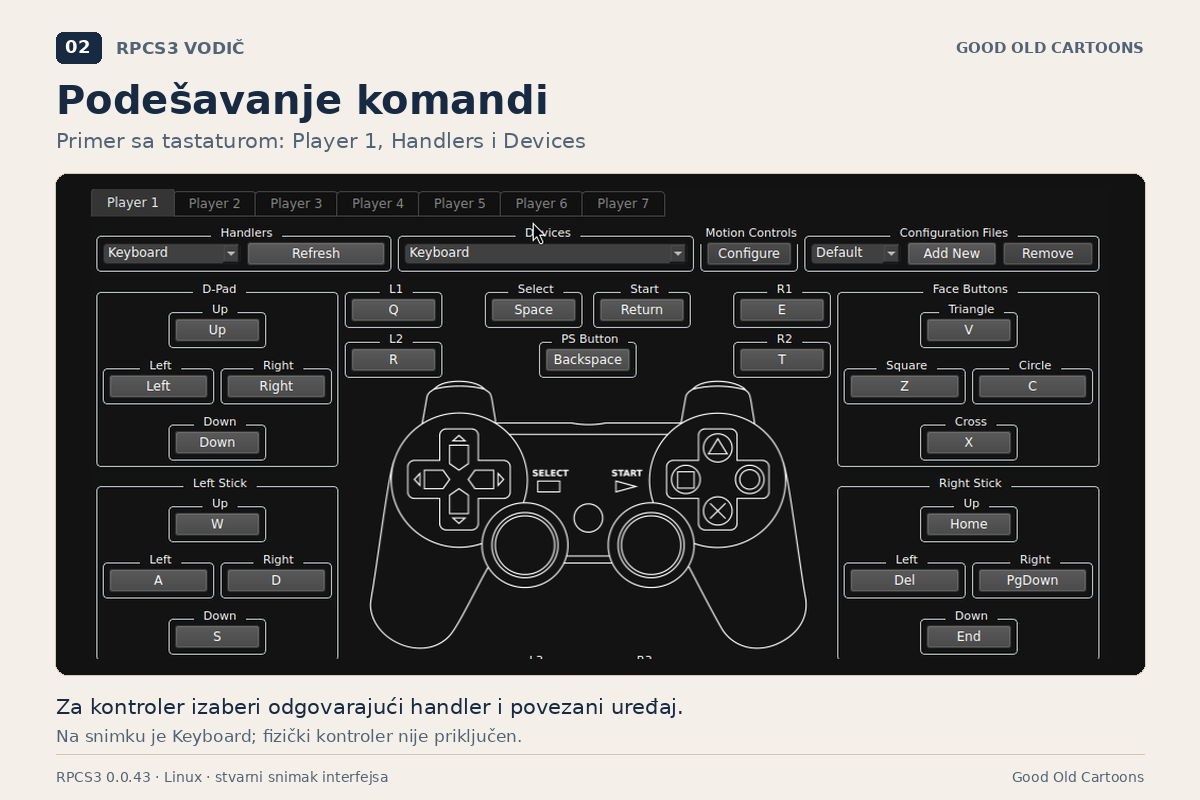
If your controller supports a wired USB connection, start with that. It lets you check the controls before setting up Bluetooth. Connect the controller, then click Pads in the main RPCS3 window.
- Select Player 1.
- Under Handlers, choose the handler that matches your controller.
- Under Devices, select the connected device.
- Press a few buttons and move both sticks to check that RPCS3 detects them.
- Check the button mapping and save your settings.
Use XInput for Xbox and other XInput-compatible controllers. DualShock 4 and DualSense controllers have dedicated handlers. The official controller configuration guide explains the options for individual models.
You can also choose Keyboard and assign keys. Check what your game requires, though: some titles use motion controls or other controller features that a keyboard or basic gamepad cannot fully replace.
4. RPCS3 setup: graphics and resolution
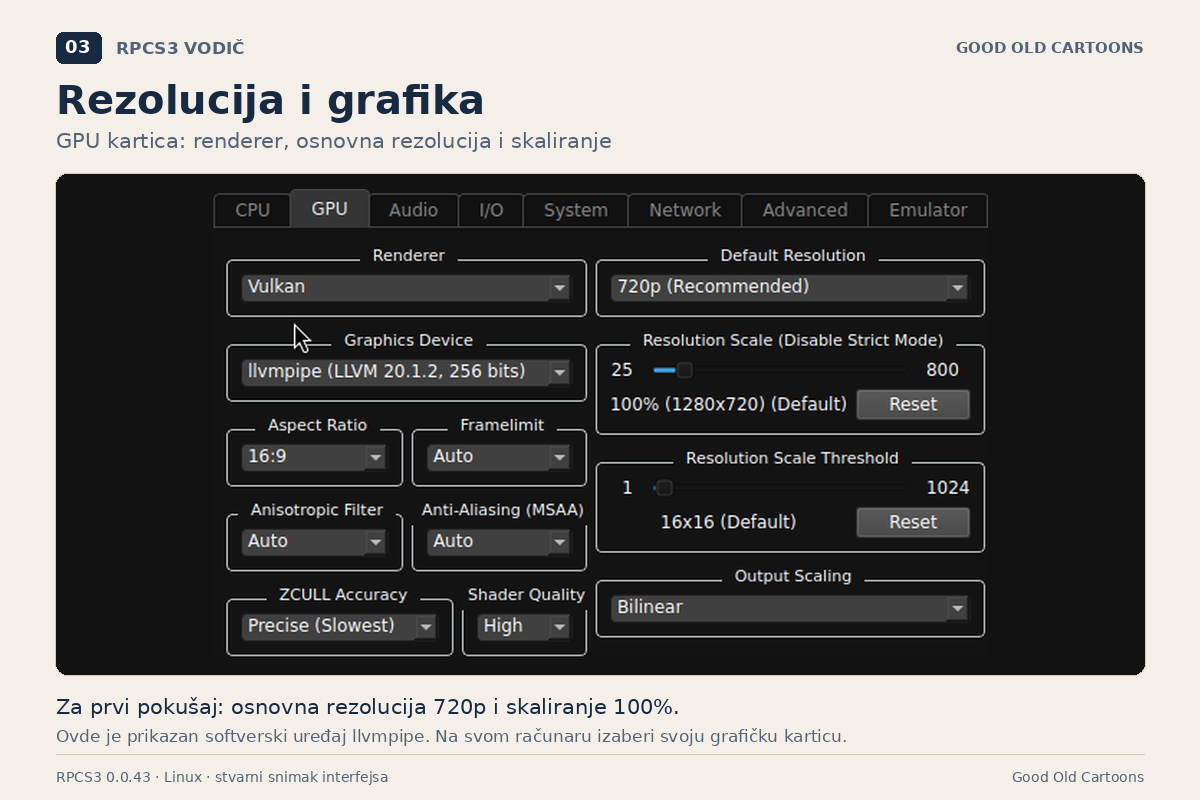
Open Configuration → GPU. For the first run, keep the settings straightforward:
| Setting | Starting point |
|---|---|
| Renderer | Vulkan, if supported by your graphics card and driver. |
| Graphics Device | The graphics card you want RPCS3 to use. |
| Default Resolution | 720p, or 1280 × 720, unless the game’s wiki page specifies otherwise. |
| Resolution Scale | 100% while checking that the game works. |
Default Resolution and Resolution Scale serve different purposes. Once the game works correctly, a higher rendering resolution is usually selected through Resolution Scale, following the advice for that title. Having a 1080p or 1440p monitor does not mean you need to change the base resolution.
Leave CPU options, the frame limit and advanced settings at their defaults unless the game’s wiki page calls for a change. The project’s Default Settings page explains what the options do. Check normal gameplay before adding patches that unlock the frame rate.
5. Add your prepared game copy
RPCS3 does not include games. You need your own properly prepared copy. The official Quickstart guide explains how to dump your legally obtained disc and digital games. The steps below begin once that preparation is complete.
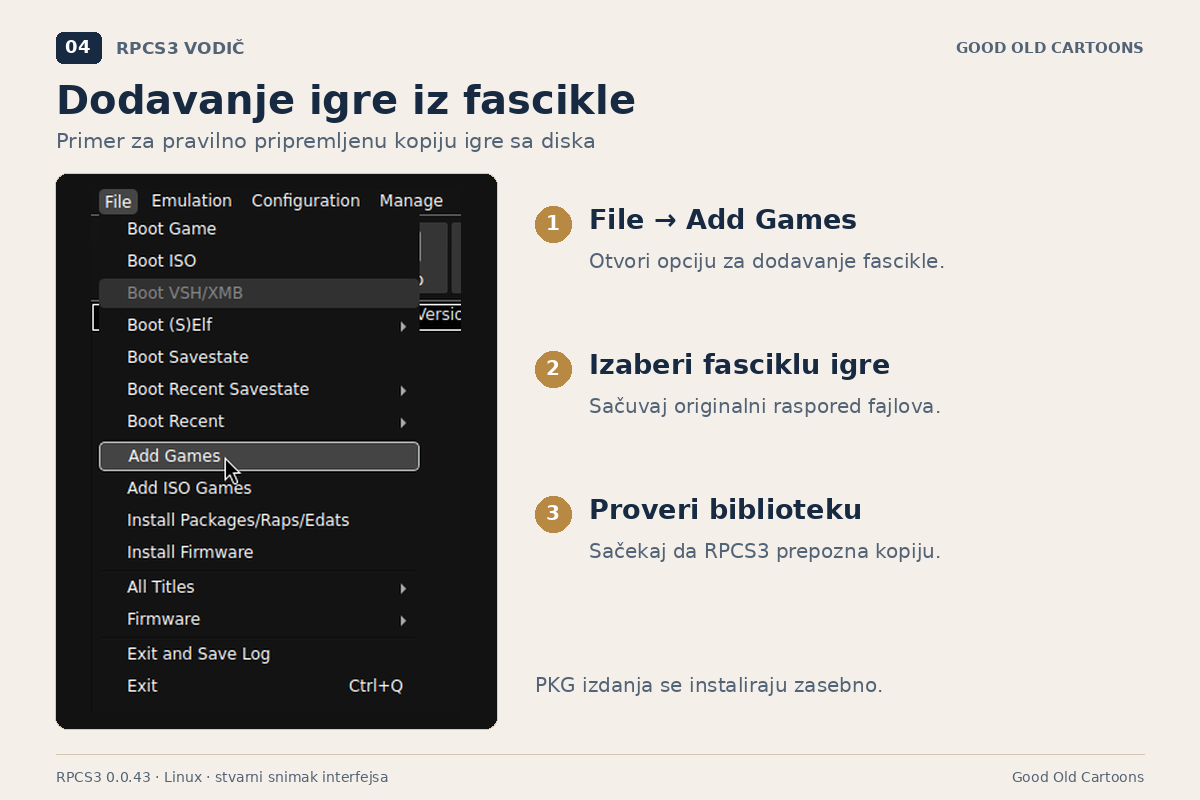
A disc game extracted into a folder
If your prepared copy is a folder containing a PS3_GAME subfolder:
- Select File → Add Games.
- Choose the game’s main folder.
- Wait for RPCS3 to recognize it and add it to the game list.
Keep the folder structure produced by the dumping process. The game needs its accompanying data, not just its executable. Adding it this way leaves the files in their existing location, so keep that folder where it is. If you move it later, add it again from the new location.
A digital game in PKG format
Select File → Install Packages/Raps/Edats, choose your .pkg file and wait for installation to finish. Digital releases that require a license also need the corresponding license data from your own purchase. Where the preparation process produces a RAP file, you can import it through the same menu.
A license error cannot be fixed by changing graphics settings. Check the preparation of the digital game and its matching license against the official instructions.
6. Launch the game and allow the initial compilation to finish
Double-click the game in the library to launch it. The first run can involve compiling emulated CPU code. Shaders, the programs used to draw graphics, may also need to compile as you play.
If a compilation progress indicator is moving, give it time to finish. A brief pause when an effect first appears can be related to shader compilation. Persistent slow gameplay is a separate issue: it may reflect your PC’s limits or a problem with the game’s current emulation.
Before increasing the resolution, check that the game reaches gameplay, the controls respond and the sound works. Use the game’s own save system, then check that you can load the saved progress. Reaching the title screen alone does not tell you whether the rest of the setup works.
If something goes wrong
The game does not appear in the library
Check that you selected the correct folder and that the game copy was prepared properly. Folder-based copies are added through Add Games; PKG files are installed. If the game data is still inside a ZIP or 7z archive, extract it first.
RPCS3 reports missing firmware
Return to File → Install Firmware and check that installation completes without an error. Keeping PS3UPDAT.PUP somewhere on your drive does not install it in the emulator.
The controller works in Windows but not in the game
Open Pads again and check the device selected for Player 1. Make sure it has not been left on Keyboard or another controller. Check for button responses in the configuration window before trying to launch the game again.
The game runs slowly or the audio crackles
Check the recommendations for your exact game ID. Return Resolution Scale to 100% if you raised it. Reducing graphics load will not necessarily solve a CPU bottleneck. Note whether the problem happens throughout the game, in one scene or alongside a compilation message.
You get a black screen or the game closes
Check your RPCS3 build, graphics driver and the game’s known issues. Change one setting at a time and repeat the same launch or scene. That makes it easier to tell which change, if any, made a difference.
If you need help, collect your CPU and graphics card models, RAM capacity, RPCS3 build number, game ID and the full log from the failed attempt. The official support guide explains where to find the log and how to submit it. A screenshot of the last error message often leaves out the information needed to diagnose the problem.
Once the game works correctly, keep a record of its settings and back up your saves. Make further changes gradually: follow the game-specific recommendations first, then try higher resolutions or additional patches.
Browse more articles about older games and PC gaming in our 2000s Internet & Gaming section.